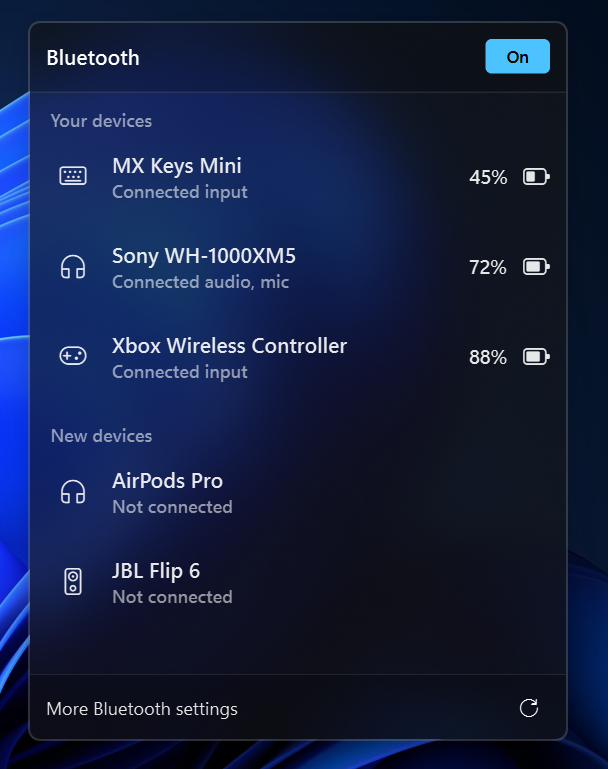
Bluetooth Widget Configuration#
Shows Bluetooth status, connected devices, and a popup menu to browse paired/new devices.
You only need the minimal config below. Every option has a built-in default, omit anything you do not want to change. The full example later is a reference of those defaults, not something you must copy into your config.
Icons: Default icon glyphs (bar icons, popup device_icons, battery, scan) use Segoe Fluent Icons. Set font-family: 'Segoe Fluent Icons' in CSS for those elements, or override the icon strings in config if you prefer another icon font.
| Option | Type | Default | Description |
|---|---|---|---|
label |
string | "\ue702" |
Format string for the bar widget. |
label_alt |
string | "\ue702" |
Alternative format string. |
class_name |
string | "" |
Extra CSS class for the widget. |
label_no_device |
string | "No devices connected" |
Text for {device_name} when nothing is connected. |
label_device_separator |
string | ", " |
Separator between device names. |
max_length |
integer | null |
Max label length before truncation. |
max_length_ellipsis |
string | "..." |
Ellipsis used when truncating. |
tooltip |
boolean | true |
Show tooltip on hover. |
icons |
dict | See below | Bar icons for on / off / connected (Segoe Fluent by default; all three use \ue702). |
device_aliases |
list | [] |
Rename devices in the bar label. Each item has two required string keys: name (the device name as reported by Windows) and alias (the name to show). |
keybindings |
list | [] |
Optional keyboard shortcuts. See Keybindings. |
callbacks |
dict | See below | Mouse callbacks (on_middle / on_right default to do_nothing). |
menu_config |
dict | See below | Popup menu options. Nested keys (labels, device_icons, ...) can also be set partially - only override what you need. |
Icons Options#
The icons option accepts the following keys. All keys are optional, the values shown are the defaults.
icons:
  bluetooth_on: "\ue702"
  bluetooth_off: "\ue702"
  bluetooth_connected: "\ue702"
Minimal Configuration#
Add only the keys you care about. Everything else stays at the default.
bluetooth:
  type: "yasb.bluetooth.BluetoothWidget"
  options:
    label: "<span>{icon}</span> {device_count}"
    label_alt: "<span>{icon}</span> {device_name}"
    callbacks:
      on_left: "toggle_menu"
      on_right: "toggle_label"
    menu_config:
      blur: true
      alignment: "center"
Full Configuration#
Complete configuration for copy/paste or comparison. You do not need this block for a working widget, the minimal config already uses these values.
bluetooth:
  type: "yasb.bluetooth.BluetoothWidget"
  options:
    label: "<span>{icon}</span>"
    label_alt: "<span>{icon}</span>"
    class_name: ""
    label_no_device: "No devices connected"
    label_device_separator: ", "
    max_length: null
    max_length_ellipsis: "..."
    tooltip: true
    icons:
      bluetooth_on: "\ue702"
      bluetooth_off: "\ue702"
      bluetooth_connected: "\ue702"
    device_aliases: []
    keybindings: []
    callbacks:
      on_left: "toggle_menu"
      on_middle: "do_nothing"
      on_right: "do_nothing"
    menu_config:
      blur: true
      round_corners: true
      round_corners_type: "normal"
      border_color: "System"
      alignment: "right"
      direction: "down"
      offset_top: 6
      offset_left: 0
      labels:
        title: "Bluetooth"
        your_devices: "Your devices"
        new_devices: "New devices"
        not_connected: "Not connected"
        connected: "Connected"
        more_settings: "More Bluetooth settings"
        connect: "Connect"
        disconnect: "Disconnect"
        connecting: "Connecting"
        disconnecting: "Disconnecting"
        pair: "Pair"
        manage: "Manage"
        power_on: "On"
        power_off: "Off"
      device_icons:
        headphones: "\ue7f6"
        headset: "\ue95b"
        speaker: "\ue7f5"
        phone: "\ue8ea"
        tablet: "\ue70a"
        laptop: "\ue7f8"
        computer: "\ue950"
        keyboard: "\ue765"
        mouse: "\ue962"
        controller: "\ue7fc"
        watch: "\ue918"
        camera: "\ue722"
        generic: "\ue702"
        battery:
          empty: "\ueba0"
          low: "\ueba2"
          medium: "\ueba5"
          high: "\ueba8"
          full: "\uebaa"
        scan: "\ue72c"
Label placeholders#
| Placeholder | Description |
|---|---|
{icon} |
Bar icon (bluetooth_on / bluetooth_off / bluetooth_connected). |
{device_name} |
Connected device names (or label_no_device). |
{device_count} |
Number of connected devices. |
Callbacks#
The callbacks option maps mouse buttons (on_left, on_middle, on_right) to actions. All keys are optional, the values shown are the defaults.
callbacks:
  on_left: "toggle_menu"
  on_middle: "do_nothing"
  on_right: "do_nothing"
Available actions:
toggle_menu- open/close the Bluetooth devices popuptoggle_label- switch betweenlabelandlabel_altexec cmd.exe /c start ms-settings:bluetooth- open Windows Bluetooth settings
Menu Config#
| Option | Type | Default | Description |
|---|---|---|---|
blur |
boolean | true |
Acrylic blur on the popup. |
round_corners |
boolean | true |
Rounded popup corners. |
round_corners_type |
string | "normal" |
Corner style. |
border_color |
string | "System" |
Popup border color. |
alignment |
string | "right" |
left / right / center. |
direction |
string | "down" |
up / down. |
offset_top |
integer | 6 |
Vertical offset. |
offset_left |
integer | 0 |
Horizontal offset. |
labels |
object | see defaults | Popup strings (title, your_devices, new_devices, not_connected, connected, more_settings, connect, disconnect, connecting, disconnecting, pair, manage, power_on, power_off). Partial overrides keep the rest of the defaults. |
device_icons |
dict | see defaults | Device-type icons (headphones, headset, speaker, phone, tablet, laptop, computer, keyboard, mouse, controller, watch, camera, generic), scan (footer search for new devices), and battery (empty / low / medium / high / full). Segoe Fluent Icons by default. |
How it works#
The bar and popup talk to Windows Bluetooth APIs for radio power, the paired list, live connection status, battery when available, and scanning for new devices. Opening the popup refreshes your paired list (usually quick). The footer scan icon runs a real Bluetooth inquiry for nearby unpaired devices (that part is slower by nature).
Connect / Disconnect is different, and only applies to classic headphones, headsets, and speakers. Windows does not give apps a clean public “connect this headset” switch that works reliably for audio. What actually brings audio online or offline is the Bluetooth audio stack behind Core Audio: the same path Sound settings uses when an endpoint goes Active or Unplugged. The widget sends a short reconnect/disconnect oneshot to those audio endpoints (grouped as one physical device when Windows exposes a container id), then waits briefly until the endpoint state matches.
That is not loading or unloading drivers, and it is not ripping the adapter in and out. Nothing is installed or replaced. It asks the already-present Bluetooth audio filters to connect or disconnect, the way Windows itself does for that class of device.
Limitations worth knowing:
- Connect/Disconnect only targets classic audio devices (headphones / headset / speaker). Phones, keyboards, mice, controllers, and similar use Pair or Manage, which opens Windows Bluetooth settings pairing and profiles there are still Windows’ job.
- After you click Connect or Disconnect, the UI may wait a few seconds while Windows settles the audio endpoints. That delay is the stack catching up, not the widget spinning on purpose.
- Status in the list follows Windows connection events. Audio can look connected or disconnected a moment before or after the Bluetooth ACL flag flips, the widget prefers the live Bluetooth status for the row, and uses audio state mainly to know when a connect/disconnect action finished.
Available Style Classes#
.bluetooth-widget {}
.bluetooth-widget.your_class {}
.bluetooth-widget .widget-container {}
.bluetooth-widget .label {}
.bluetooth-widget .label.alt {}
.bluetooth-widget .icon {}

/* State classes are applied to both .icon and .label */
.bluetooth-widget .icon.bt-off,
.bluetooth-widget .label.bt-off {}
.bluetooth-widget .icon.bt-on,
.bluetooth-widget .label.bt-on {}
.bluetooth-widget .icon.bt-connected,
.bluetooth-widget .label.bt-connected {}
Available Style Classes for the Menu#
.bluetooth-menu {}
.bluetooth-menu .header {}
.bluetooth-menu .header .title {}
.bluetooth-menu .header .power-button {}
.bluetooth-menu .header .power-button:checked {}
.bluetooth-menu .header .progress-bar {}
.bluetooth-menu .error-message {}
.bluetooth-menu .bluetooth-list {}
.bluetooth-menu .section {}
.bluetooth-menu .section-title {}
.bluetooth-menu .bluetooth-item {}
.bluetooth-menu .bluetooth-item.active {}
.bluetooth-menu .bluetooth-item .icon {}
.bluetooth-menu .bluetooth-item .name {}
.bluetooth-menu .bluetooth-item .status {}
.bluetooth-menu .bluetooth-item .battery {}
.bluetooth-menu .bluetooth-item .battery-icon {}
.bluetooth-menu .bluetooth-item .battery-icon.empty {}
.bluetooth-menu .bluetooth-item .battery-icon.low {}
.bluetooth-menu .bluetooth-item .battery-icon.medium {}
.bluetooth-menu .bluetooth-item .battery-icon.high {}
.bluetooth-menu .bluetooth-item .battery-icon.full {}
.bluetooth-menu .bluetooth-item .controls-container {}
.bluetooth-menu .bluetooth-item .connect {}
.bluetooth-menu .footer {}
.bluetooth-menu .footer .settings-button {}
.bluetooth-menu .footer .scan-icon {}
Example Style#
.bluetooth-widget .icon.bt-off,
.bluetooth-widget .label.bt-off {
    color: #888;
}
.bluetooth-widget .icon.bt-on,
.bluetooth-widget .label.bt-on {
    color: #4cc2ff;
}
.bluetooth-widget .icon.bt-connected,
.bluetooth-widget .label.bt-connected {
    color: #00c800;
}
.bluetooth-menu {
    background: rgba(28, 28, 28, 0.6);
    min-width: 360px;
    min-height: 480px;
}
.bluetooth-menu .header {
    padding: 12px;
    background-color: rgba(0, 0, 0, 0.2);
    border-bottom: 1px solid rgba(255, 255, 255, 0.1);
}
.bluetooth-menu .header .title {
    font-size: 14px;
    font-weight: 600;
    color: white;
}
.bluetooth-menu .header .power-button {
    background-color: rgba(255, 255, 255, 0.12);
    border: none;
    border-radius: 4px;
    color: #fff;
    font-size: 11px;
    font-weight: 600;
    padding: 4px 14px;
    margin-left: 8px;
}
.bluetooth-menu .header .power-button:checked {
    background-color: #4cc2ff;
    color: #000;
}
.bluetooth-menu .progress-bar {
    min-height: 2px;
    max-height: 2px;
    color: #4cc2ff;
}
.bluetooth-menu .bluetooth-list {
    background-color: transparent;
}
.bluetooth-menu .section {
    background-color: transparent
}
.bluetooth-menu .section-title {
    font-size: 12px;
    font-weight: 600;
    padding: 10px 12px 4px;
    color: rgba(255, 255, 255, 0.6);
}
.bluetooth-menu .error-message {
    font-size: 12px;
    font-weight: 600;
    padding: 6px 0;
    background-color: #92242d;
    color: #e7bfc2;
}
.bluetooth-menu .bluetooth-item {
    min-height: 44px;
    padding: 6px 12px;
    margin: 2px 4px;
    border-radius: 6px;
}
.bluetooth-menu .bluetooth-item:hover {
    background-color: rgba(255, 255, 255, 0.05);
}
.bluetooth-menu .bluetooth-item.active {
    background-color: rgba(255, 255, 255, 0.1);
    border-radius: 6px;
}
.bluetooth-menu .bluetooth-item .icon {
    font-family: 'Segoe Fluent Icons';
    font-size: 18px;
    margin-right: 12px;
    min-width: 28px;
    font-weight: 400;
}
.bluetooth-menu .bluetooth-item .name {
    font-size: 14px;
    font-weight: 600;
}
.bluetooth-menu .bluetooth-item .status {
    font-size: 12px;
    color: rgba(255, 255, 255, 0.6);
    font-weight: 600;
}
.bluetooth-menu .bluetooth-item .battery {
    font-size: 13px;
    font-weight: 600;
    padding-right: 6px;
}
.bluetooth-menu .bluetooth-item .battery-icon {
    font-size: 18px;
    font-weight: 400;
    font-family: 'Segoe Fluent Icons';
}
.bluetooth-menu .bluetooth-item .controls-container {
    padding-top: 8px;
    padding-bottom: 8px;
}
.bluetooth-menu .bluetooth-item .connect {
    background-color: rgba(255, 255, 255, 0.15);
    padding: 4px 12px;
    border-radius: 4px;
    border: none;
    font-size: 12px;
    font-weight: 600;
}
.bluetooth-menu .bluetooth-item .connect:hover {
    background-color: rgba(255, 255, 255, 0.22);
}
.bluetooth-menu .footer {
    padding: 8px 12px;
    background-color: rgba(0, 0, 0, 0.2);
    border-top: 1px solid rgba(255, 255, 255, 0.1);
}
.bluetooth-menu .footer .settings-button {
    background-color: transparent;
    border: none;
    font-size: 12px;
    font-weight: 600;
    cursor: pointer;
}
.bluetooth-menu .footer .scan-icon {
    font-family: 'Segoe Fluent Icons';
    background-color: transparent;
    border: none;
    font-weight: 400;
    min-width: 28px;
    min-height: 28px;
    color: #fff;
    border-radius: 4px;
}
.bluetooth-menu .footer .scan-icon:hover {
    background-color: rgba(255, 255, 255, 0.1);
}
Preview of the Widget#